
The welcome screen
When no company is open you see the welcome screen. (Before your license is activated, Nani shows the license screen instead; see Activate your license.) The first time, it offers three choices: set up your company, look around with the sample books, or open a Nani company file you already have.
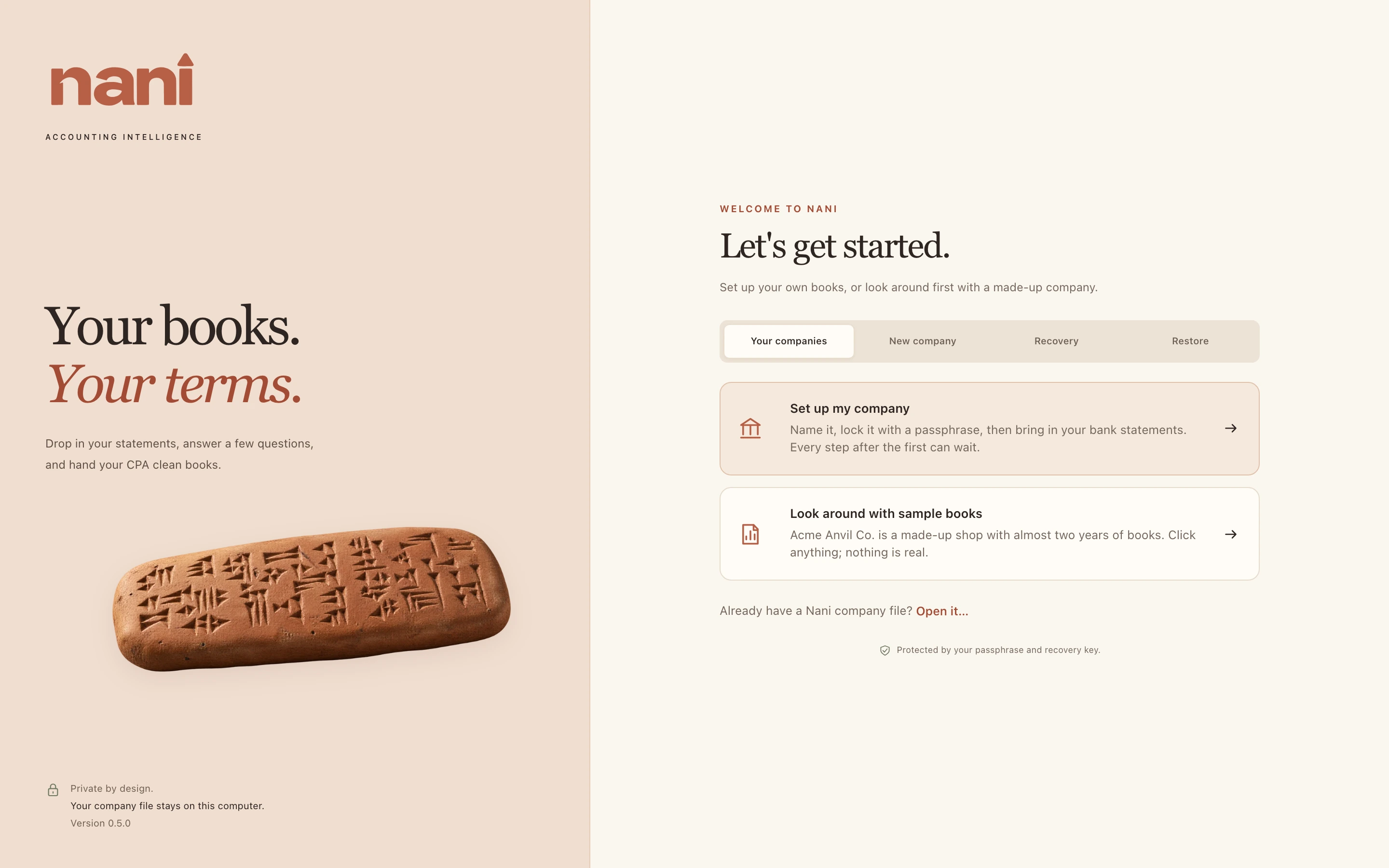
Later it lists your companies under four tabs: Your companies, New company, Recovery and Restore.
Open your books
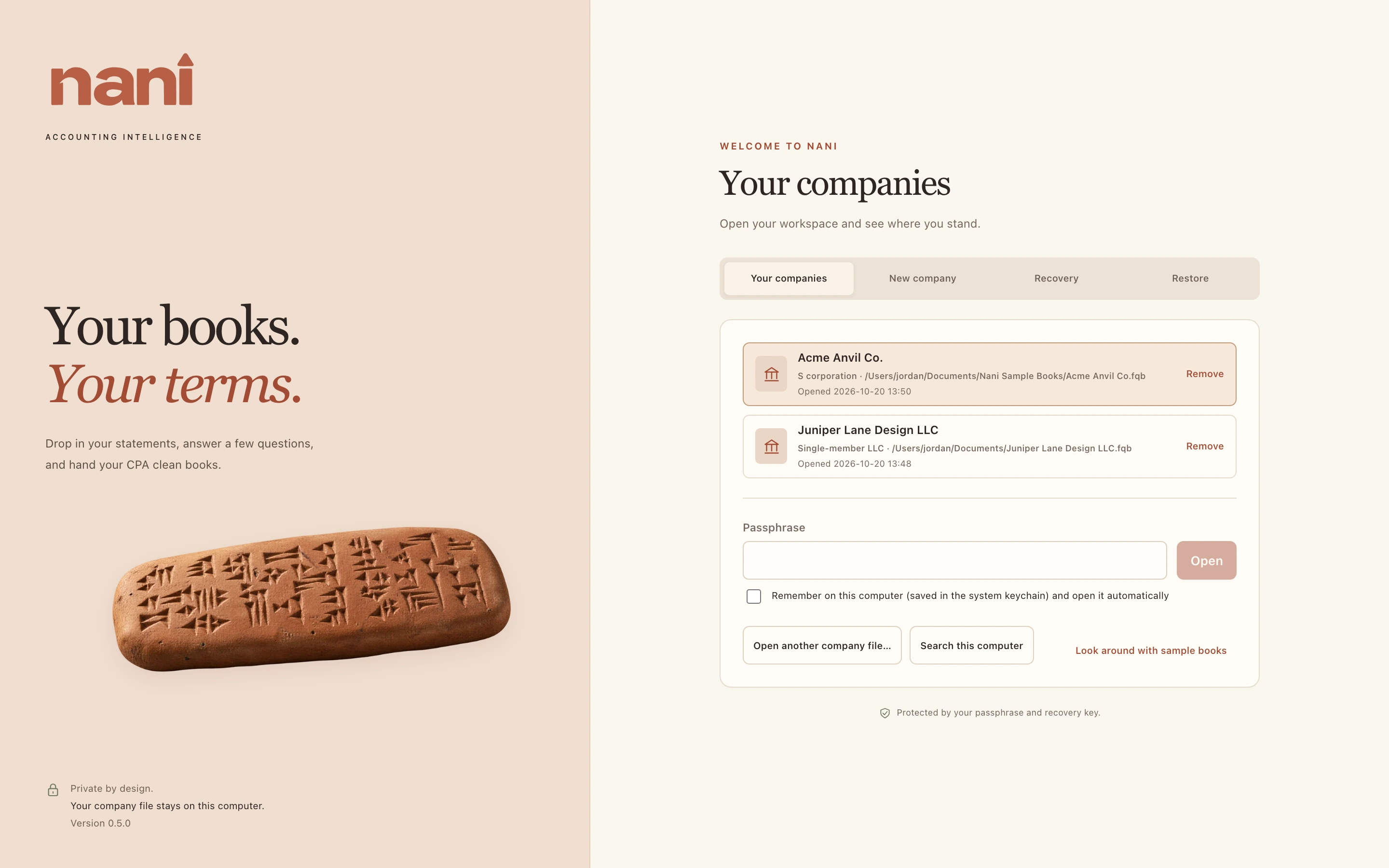
On Your companies, select a company and type its passphrase. Tick Remember on this computer to keep the passphrase in your computer's keychain; Nani then opens that company automatically when it starts.
- If a remembered passphrase stops working (say you changed it on another computer), Nani shows the passphrase box so you can type it, and saves the new one if you leave the box ticked.
- Forget saved passphrase removes the remembered passphrase from this computer.
- Open another company file… opens a .fqb file that isn't on the list. Search this computer looks for company files in Documents, Desktop, Downloads, iCloud Drive, Dropbox, OneDrive and Google Drive.
- Remove takes a company off the list. The file itself isn't touched.